I have always been a big fan of the Doodle 4 Google contest because it helps bring Art to the digital landscape. I share it with the Art teacher at my school every year and he has had some good entries in the past; I am hoping that can continue. This years theme focuses on students dreaming big. Google is asking students to draw a Doodle that would answer the question "My Best Day Ever."
The winner of the contest will see their Doodle appear on the Google homepage, receive a $30,000 scholarship, and help their school receive $50,000 for a technology grant. There are smaller regional prizes as well. You can learn more about the judging and prizes HERE. Voting will open for the 50 state winners on May 1st. All state winners will also have their artwork. Here is a video about this years contest.
Google has provided some some resources for educators that can be used to provide information to your students and parents. Also a poster to advertise the contest in your classroom and school. The History of the Doodles is also an interesting read to learn about how this contest came about and the Doodles themselves and how the general public can submit Doodles outside of this contest. There is even a way to see all the Doodles from the past.
So just the other day I wrote a post about the upgrade and new look of Wallwisher. Apparently I should have waited a few days because today, Wallwisher announced some awesome new features. The first new features is a new formatting toolbar. Users will now have the ability to make paragraphs, bold, italics, bullet, quote, etc. See the new toolbar below.
However, that is not the most important improvement. Wallwisher now offers LaTeX, which is a mathematical function for creating math text formatting. This could be extremely useful for math teachers wanting to integrate Wallwisher into their classroom. See sample below.
Other features include posts not restricting their size to a certain width, so typing can happen till you decide to go to the next line and then you can resize your text area. The quotes also indent and italicize for users as well. HTML can also be pasted and got some upgrades as well.
There is no shortage of video editing and video creation tools on the web. Mozilla Popcorn Maker just might be the one that tops them all. The video software makes it easy to integrate all types of media into a video. You can take a clip from YouTube and enhance it with articles, graphics, text, audio, and even social media content from Twitter. You can also include maps, pictures, and other live feeds into the video as well. It makes the video you create virtually interactive. You can login using Persona so that you can save your video projects.
On the main page, there are two options. Users can either start a project or take a tutorial (highly recommend to see even more) to learn how to use the software. To understand more, please see the video below to help you understand. The video does a good job of showcasing the ability of this software.
When I started this blog, Wallwisher was the very first post that I wrote about. A little over 3 years later the first site I ever wrote about has a new look, some improved features, but still a great tool for teachers to use in the classroom. Immediately, the first difference I noticed were "templates" for ideas on how to use wallwisher. If users don't want to use the template, then users can build and create their own wall.
You can add your own photo as a small portrait, or use the one provided. Each wall gets a title and description which is viewable when users visit the site. There are several more options for wallpapers as well. Like before you can choose the privacy levels and provide a custom URL. A new feature is make your wall a custom domain. Creating an account allows you to save your walls as well.
The actual process of typing onto the wall has changed a little bit as well. No limit on amount of text anymore and with keyboard shortcuts, users can add rich text formatting as well. It is easier to upload a file by dragging and dropping or by browsing. Users can also link to a video, picture, or website. You can also take a picture with a webcam as well. Sharing features also remain the same with the ability to share on social media, subscribe, embed, and now mobilize the wall using a custom QR Code.
Still the same services, just better looking. A positive move to a product many teachers have been utilizing since I first wrote about Wallwisher, Paper for the Web.
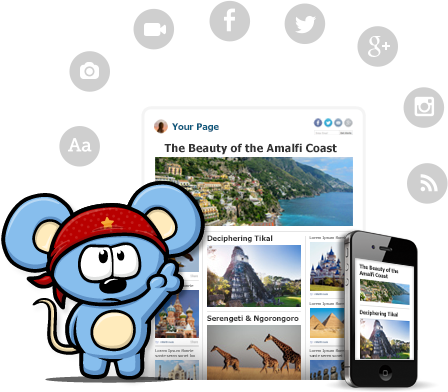
RebelMouse, currently in beta, is a social aggregator that brings your Facebook, Google+, Instagram, and Twitter all into one place and presents it in Pintrest style wall. You can also add various RSS feeds, Pinterest, and other services. If you are using the social media services listed above as an educator and want a main page for students and parents to visit to get all the information shared in one place, RebelMouse would be worth a look. By signing up you get your own page on RebelMouse that you can share with others.
There is also a bookmarklet tool that allows you to easily share new content to your RebelMouse front page. You choose an image, make text edits, and then publish to your front page. As you make any updates to your social profile they will automatically appear on your front page. Last year when I was teaching I had a Twitter Feed, Facebook Page, and a blog for my classroom. RebelMouse would have provided a homepage for students to visit. I also could have easily linked videos and other stories pertinent to class that didn't necessarily require a blog post.
A feature that teachers might also enjoy is the ability to add a post/story directly from your front page. You can add a headline or URL, add pictures, videos, or an album and then write the post. You can also add tags to the story. It turns your front page into a blog at the same time, but also a way to add a post without using the bookmarklet tool.
Sometimes you might have tweets or posts that you don't want to appear. There is a draft section that contains those that RebelMouse is unsure of whether you want to post them or not. You can visit there and add them as necessary. You can also adjust the themes of your page and create your own. There are already several videos on YouTube explaining how to create a theme.
You can see my RebelMouse Front Page for a sample. It is currently just my Twitter feed, but provides you with a sample of what a page would like look. Also, here is a 60 second video with an introduction.