Showing posts with label IPhone. Show all posts

Monday, December 8, 2014

Air Scanner - Wireless Document Camera App


Air Scanner is an App I discovered from a Facebook ad of all places.  It allows users connected to a Wifi to easily turn their iPhone into a mobile document camera.  The app provides a numerical web address that users can type into their browser.  Within the browser, whatever the camera is showing will appear within the browser window.  There is also an option to freeze the image if need be and turn on the camera's flash.


I could see Air Scanner being used by teachers to showcase student work from the desk or students could use the App to zoom in to presentations that were created on a Poster Board.  This is a free method for teachers to get a document camera and not be limited to a single location in the classroom.


Wednesday, May 8, 2013

Brainscape - Learn Faster with Flashcards


Brainscape is a learning service that allows users to create flashcards and then control their learning based on how well they can recall the information they are studying.  Brainscape is a step above other flashcard services by providing users the ability to add pictures and audio to their flashcards.  The audio aspect is definitely an improved feature for ELA and Foreign Language learners.  At my school we offer a medical terminology class and I could see it useful there as well.  Brainscape also offers a free iPhone app that allows users to download their flashcards too so that they can study on the go.

Brainscape offers users the ability to see different levels of what they have learned and what they don't know at all.  This allows students to focus on the areas that they are weakest in.  There are also flashcards that are already created that users can find and start studying immediately for a fee. Users can create an account using standard log in information or connect with their Facebook.  See the video below for more information.


Friday, March 15, 2013

Google Field Trip


Google Field Trip is an iDevice App and Android App that allows users to discover the hidden things around you while you travel around our world.  Field Trip runs in the background of a phone and when a user gets close to something interesting it will notify them.  If a headset or bluetooth is connected, the app will even read the information to the users.  For education purposes, the app will help users learn about the local history and even provide other information like eating options.  The information feeds that users choose will help determine the information that the app provides.  To see a promotional video for the app, see the video below.


Word of caution...it currently is quite the drain on the battery according to some reviews.  However, I could see how this app could be utilized for classroom field trips.  

Friday, March 8, 2013

Stitch - Create Digital Stories on iPhone


Stitch is a free app for the iPhone (with paid upgrades for more features) for the iPhone that allows users to easily create digital stories from their phone.  Users can use available templates and effects to create their story.  Images can be added by what is saved on phones locally or through a Google Search within the App.  To use the app to create a presentation does not require an Internet signal.  When users are finished creating their presentation it is converted to an MP4 file and can be shared with anyone.  To understand how Stitch works, check out the video below.


Friday, February 15, 2013

BUMP Provides Ability to "Bump" Even More


I recently wrote a post discussing how the Bump App for Android and Apple now had the ability to Bump pictures to your computer.  In the most recent update to the service, users can now bump a lot more.  By using the app and "bumping" your phone to the spacebar, users can easily share videos, files, audio, photos, and everything from their phone.

With phones increasingly becoming a valuable tool in the classroom, it is going to be worthwhile to utilize what apps and tools are available to easily make files available.  As students are using their phones for video and photo projects, Bump could be a valuable tool for teachers to use to gain access to student work.  It might also be a good way for teachers to collect contact information of parents, students, or athletes if they are a coach.  

Tuesday, January 22, 2013

eyeReport - PIP Videos for iDevices

eyeReport is currently an Apple Device App that allows users to use both of their cameras on their iDevices at the same time.  Through the software users can do a picture in picture video and capture facial expressions, thoughts, and ideas while making a video.  Once the videos have been created users can email them or upload to various social networks.  Teachers could use the software to add their voice and face to a lesson while filming the blackboard.  I could see this app increasing the video capabilities on mobile devices in the classroom.

The app will let users record a clip from the rear camera and then when you finish it will flip to the front camera and let users record from that camera.  eyeReport will then create a PIP box so users can see what was recorded from the front and rear camera.  If you already have a video on your camera, you can add the PIP feature to it.

Here are some of the features:
+ Overlays a second video captured by the front camera on a first video captured by the back camera, while the first video is being played.
+ Produces composite video from both front and back cameras of your iPhone.
+ Superimposes the user's face as picture-in-picture on your video.
+ Saves and stores your composite videos for future sharing.
+ Takes an old video stored in your iPhone and opens a window for overlaying as picture-in-picture a new recording of front camera.
+ One-click sharing of your composite video on facebook, Twitter, YouTube and mail.
+ Turns your old movies into composite videos featuring you as observer, commentator or participant.
+ A way to create dedicated communities for news reports, entertainment information or educational online networks. 


Monday, January 21, 2013

My School Notebook


I recently did a post with 10 Apps for Students to Take Notes and after typing that came across My School Notebook which is a Google Chrome App and an independent app that students can use to help organize and keep their notes on the web.  Students can also use the service on both Android devices and Apple devices.  To use the service, students can log in by connecting to Facebook or create an account with an email and password.  What makes this service even better is the ability to use the service offline.

Like most tools, the collaboration and sharing options make it a usable tool for students who are absent or maybe need more assistance in learning how to take notes.  There is also a drawing feature that allows for notes in classes that require diagrams or other types of illustrations.  Students can create different notebooks for different subjects making organization easier.  To learn more about the functions of My School Notebook, CLICK HERE.

Sunday, January 20, 2013

Turn Your Phone into a Presentation Remote


If you are a user of Chrome or Safari as your web browser and use presentation software such as SlideShare, Google Docs Presentation, or PowerPoint, then you have the ability, through a Chrome Web store App and a Phone App to turn your phone into a presentation remote.  You can see the presentation below and visit Presentation Remote for more information.

In order for the service to work you would need to download the free app de Modo for either Android devices or iPhone Devices.  What is cool is that this same app will work with Pandora Radio and with YouTube where you can turn your phone into a remote control for YouTube.  In another way through this app your phone can serve as a monitor extension as well and the ability to drag and drop from your phone to your computer, just as if you had a secondary monitor.


I am not quite an avid user of Google Chrome over Firefox, not really sure why, but it appears that the apps available for Chrome might make it worth a switch.  This is just one example.

Monday, December 31, 2012

The P.I.N.G. Project


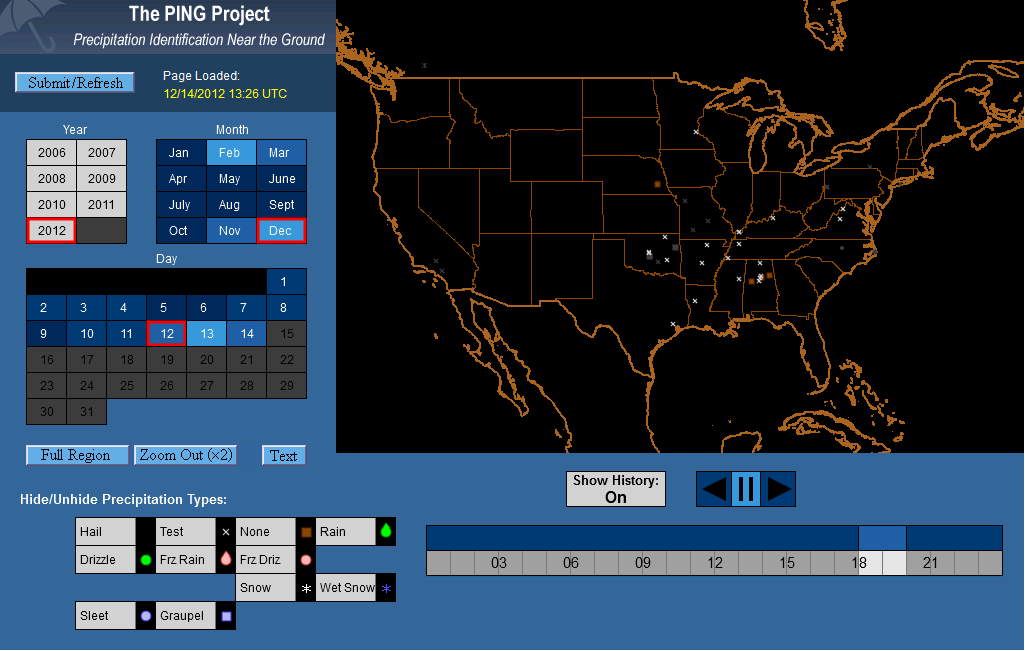
Anyone who follows me on Twitter knows that if I am not tweeting about education and technology, then I am probably tweeting about two other things; weather and the Louisville Cardinals.  This post focuses on a project by the National Severe Storms Laboratory that wants to help identify weather conditions on the ground.  Because radar systems focus on conditions in the upper atmosphere, we often see radar with weather on top of us, but no precipitation falling.  The goal of this project is to help with "nowcasting."  The PING (Precipitation Identification Near the Ground) project uses an iPhone App or Android App to help report current conditions.  If no access to an app is available, then weather reporting can also be done on the PING website.
"PING is looking for young, old, and in-between volunteers to make observations—teachers, classes and families too! We have collected over 45,000 observations since 2006, already making PING successful because of your help."
This tool would be a great addition to science classrooms to report weather conditions for an experiment in a science classroom and have students log when they create a report and see conditions for different areas of your town.  In a recent snowstorm in my area, a range of 30 miles had a difference between 1-6 inches.  As reports go in, they appear on the PING Data Display Page.  You can see a sample image below.


The PING website also provides a valuable lesson for learning about various types of precipitation that can occur during weather events.  Remember that safety is a first priority and people should not put themselves in danger in order to report weather conditions, especially during severe weather.  That should be left to trained and educated professionals.

In education we constantly talk about making it relevant, meaningful, and hands-on.  The PING Project allows for an opportunity to do such reporting while also teaching students about honesty and weather.

Tuesday, December 11, 2012

iPad Apps for Schools


The blogger for Free Technology for Teachers, Richard Byrne, has created a new blog, iPad Apps for School.  Through this blog, teachers will be able to learn about free and paid apps available on the iPad.  Visitors will also be able to watch videos and reviews of the projects as well.  Mr. Byrne is a dedicated educator and blogger who does an excellent job of sharing technology education resources on a daily basis.

Mr. Byrne is a valuable starting point for learning about what is available on the web and on mobile devices for teachers.  I highly recommend bookmarking iPad Apps for School, especially if you use them in your classrooms or are contemplating the purchase of iPads for your district.  Do you have an awesome iPad App that you think should be shared on his page?  He has created an opportunity for visitors to do just that.  Share an App is a great way to promote what works in your classroom.

If you are not using iPads in your classrooms, but are using Android devices, never fear, Mr. Byrne has also created a page for Androids 4 Schools as well.  The same premise applies to this blog as well and provides information for Android based devices. 

To see his original post about his new site, CLICK HERE

Friday, December 7, 2012

Cell Phone Apps for Teachers

Mobile Technology is taking over and as it does, teachers are either all in or have no interest in their use without realizing how beneficial the use of the apps could be in their classroom.  These are the apps that I have seen used recently, used myself, or think have the greatest impact.  Leave me a comment with your favorite App.

The Remind 101 App (also on the Android Market) is a continuation of the website Remind 101 which allows teachers to create lists of students and then send text message reminders to them for completely free.  I used this in my classroom and had several students tell me how it helped them remember to study or complete an assignment.  The service works by providing a code to the teacher to share with students who send it into Remind 101 and they are added to the list the code generates.  To learn more, see the video below.


Three Ring App (Also on Android) allows users to take pictures of student work and keep track of them online.  It is an easy way to organize and present students' real world work from hand written assignments to presentations.  You can also include videos.  Visit ThreeRing to learn more and to sign up.  It is free for teachers.


The Bump App (also available on Android) allows users to easily share contact information, photos, videos, and other files from their cell phones.  The App would be a valuable way to trade contact information with teachers at professional development or with parents if you use your phone as a contact with them.  I could see this being used for coaches as well.  Read a previous post about how to use bump for images to your computer as well.  Teachers could also use it with students to get pictures, lesson


The Wunderlist App (also available on Android) is a necessity for teachers needing assistance with staying organized or are just looking for an app to help them focus on all the requirements of the job.  Due dates for lesson plans, and assignments.  Professional Development, PLC, and school meetings clog your calendar.  Wunderlist provides teachers the ability to easily sync and manage all their "To Dos."


The Socrative App for Teachers and Students (Available on Android as well are the Teacher and Student App) provides users the ability to do use their cellphones as a clicker system.  The Teacher application allows the teacher to not be stuck at their desk running the presentation.  Everything can be done on any device with internet access, but the App allows the teacher to move around and monitor the students.  See the video below for more information.


The Genius Scan App (also available on Android) is an app that allows users to turn the phone into a pocket scanner.  Once you have scanned the documents, it will email them to users as a JPEG or PDF.  The app also easily syncs with Dropbox and Evernote.  Often times within the school or at professional development a resource is shared on paper and you want a copy.  This provides an easy way to turn those paper documents into an electronic copy.  You could also use this app with student work as well.


The Class Dojo App (Mostly for Elementary teachers and currently not available as a Android App) is an app for monitoring, tracking, and sharing the behavior of your students throughout a class period.  The app and the Class Dojo website allows teachers to capture and generate data on the behavior of their students.  Students get real time feedback.  Parents can also receive weekly behavior reports as well.  See the video below for more information and visit their YouTube Channel for helpful videos.


The Evernote App (also available for Android) is a favorite among educators because of its ability to sync all your documents and notes in one place.  Whether it is a computer, phone, or tablet, all notes are synced in one location.  A great tool for when attending conferences, professional development, and faculty meetings.  Accounts and folders can be shared, so with students, it would be easy to share important documents with your students and even parents.   Evernote also allows the saving of pictures and audio files as well.  Teachers could provide a document with audio information as well for students who are struggling readers. 


The Pick Me! App (Currently not available on Android) and the only App I have chosen that has a cost ($1.99 currently) allows users to randomly call on students.  It makes it easy not only to pick names but also track responses on formative assessment.  Data from the formative assessment results is emailed to users.  Various settings allows for multiple uses in the classroom.  It has an option to import rosters using a CSV file through Dropbox if interested.  As a bonus, you might be interested in their Grade It! App (free) which easily provides calculation percentages for determining grades.

Thursday, December 6, 2012

Free Safe Text


Not necessarily a "teaching" tool for the classroom, but a "teaching" tool for life.  Free Safe Text is an app that is currently available for Android phones (iPhone app is currently in development) that helps users resist the urge to text while driving.  The App works by opening the App before you start driving.  Any text message you receive, the sender will get an automatic reply that lets them know you are driving and provides a link to information about the App.

When a person comes to a stop and is no longer driving (not just at a red light) you can place the App in Parking mode and the user will be able to receive text messages again.  During the month of December to encourage the use of the App, they were giving away $25.00 a week based on the number of times the automated message was sent from your phone AND the number of referrals to sign up to use the Free Safe Text App

To sign up for information about when the iPhone release will be available, click here.

For more information, see the video below to learn more.


To learn more about the statistics related to texting while driving, see the video below.

Wednesday, December 5, 2012

Bump Images to you Computer


Most of us that have an iPhone or Android phone have heard of or seen the Bump App that allows users to easily transfer photos and other files from one device to another.  Now that same services offers users the ability to "bump" pictures to your computer.  With bu.mp you can take photos on your phone to your computer by simply visiting the bu.mp website and tapping the space bar with your phone.  Make sure that location is enabled in your browser for it to work.  To see how it works, see the video below.


Another App from the same company that would be of interest is the Flock App.  If students are working on a project together that requires the use of pictures, Flock App would allow the easy sharing of those photos across their mobile devices.

Wednesday, August 15, 2012

TagMyDoc


TagMyDoc is a service that allows users to easily "tag" their documents with a QR Code and by doing so automatically stores the document (Word, Excel, PowerPoint) in the cloud so that it is easily accessible by anyone needing a copy.  To use TagMyDoc you will need to install an extension to your Office software that allows the service to work.  The extension will appear as a new option in the Office Ribbon at the top of the screen. 

With a free account you have the ability to upload 100 documents that you tag.  You can add more space for small monthly fee if you find yourself using this service all the time.  You can also organize your documents on the website as well.  There is a ScanMyDoc App as well for both Apple Devices and Android Devices

I could see this being used for students who have a tendency to forget assignments in their locker, so they could easily scan the document after class or in class (Depending on school policy) so that they have access to this at home.  Administration could also use this document to provide ways for teachers to get access to documents that they share for professional development and faculty meetings. 

BenchPrep


Chances are you have a few students taking the ACT/SAT and AP exams this school year.  Often times these test stress out several students and can be a daunting task for teachers to cover the material and get students prepared; especially for the AP exams.

BenchPrep aims to help students prepare for those exams by providing test prep.  You and/or your students can search through the various courses and see which ones are available for them.  Each test provides the source for where the content is added.  The AP test in particular come with reading and review material, several practice questions, practice tests, and digital flashcards. 

One of the best features, as you can see from the image above, is that BenchPrep makes all the test prep available on iPhones/iPads and Android phones, as well as on the web.  By syncing, students will be able to pick up where they leave off when switch devices.

Other features include the ability to bookmark important parts of the reading material, questions, and flashcards.  Questions and reading material can be marked by a level of confidence as well.  Notes can also be taken for reminders.  At the conclusion of a sample test or questions, students will receive a report and analysis of their work as well.

There is a cost involved, but for what it provides, it seems like a good option.

Thursday, February 16, 2012

TourWrist


TourWrist is a website dedicated to providing elegant and high quality 360 degree panorama pictures from places around the world.  Most of these have been user submitted, but the concept is great for showcasing places around the globe in great detail.  This one for the Grand Canyon is pretty sweet. You can browse other uploaded panoramas as well.  There are not that many now, but over time, and the app being free, this could really take off with how high quality the images are.

Tourwrist uses a free iPhone/iPad app and you can upload them from there.  Students could use these for a project, or it might be a neat way to share your school campus with visitors to your school website. Would be a great way to share your town with everyone you know or even for a local community project.  I could see this app taking off for Geography classes as well.

Here is their introduction video

Thursday, October 13, 2011

Quixey - App Search


It was only a matter of time before a search engine dedicated to Apps became available.  Quixey provides you just that capability.  You can search for Apps on various platforms: Android, iOS, Mac, Windows, Chrome, Firefox, Facebook, Web, and others.  As more schools adopt wireless devices in their classroom, finding an App for student and teacher use could be beneficial.  Quixey would be a valuable tool if looking for an App to use in your classroom.  You can watch the video below to learn more.

Thursday, May 19, 2011

Celly - Create SMS Channels

Celly is a program that allows you to create a channel for your students using SMS.  You can even moderate the messages between students.  You can send out reminders and other information.  Students will submit to follow your "channel" and when a message is sent to that "channel" they will get it.  For more information, watch the video below.  For more information about using it in school, check out the Celly Schools Page


Wednesday, March 30, 2011

10 Wikis Worth Checking Out

Last school year I would dedicate Wednesday's to sharing a Wiki or a few Wikis that I thought were of value.  Looking back, it has been almost 11 months since I did a Wiki Wednesday post, so I guess I have a lot of catching up to do.  So I present 10 Wikis that I have recently discovered that I think are worth sharing.

1.) First Day - We all have our First Day of School routines.  The question is how many have activities for the content area that they teach?  This wiki provides some interesting ideas for First Day of School Activities.  Worth looking at.

2.) Project Elite Wiki is specific for Librarians.  With the advances in technology there is a fear (and in some states a reality) that librarians will soon be removed or replaced in schools.  The purpose of this Wiki is to encourage technology use by Librarians.  It is important to be able to present yourself with additionally abilities, and this Wiki is a great starting point for Librarians. 

3.) iPods, iPhones, and iPads in Education is a great homepage for all you need to know about integrating iTechnology into the classroom.  Several resources as well as descriptions of apps for various subject matter. 

4.) Open Source Graphics and Visualization Tools is a wiki providing links to web based resources that provides ways to create, share, and edit graphics and visuals.  Very well organized. 

5.) Paperless Posters is a wiki all about Glogster.  You will find helpful tips, samples, and ideas for using Glogster in the classroom.  A helpful link for learning how to use the website and worth sharing with teachers who are interested in using the site. 

6.) Backchanneling Wiki is a one stop shop for all things backchanneling.  The idea of communicating with students through a backchannel is gaining a lot of steam.  This wiki provides links to web-based applications, ideas for use, and links to other resources about backchanneling.

7.) Educational Wikis is all about how to use Wikis in education and it provides various links to articles, tips, ideas, and other resources for using Wiki's in education.  You will also find 100's of examples of educational wikis being used by teachers across the world.  They are listed in alphabetical order.....wow!

8.) Cool Tools for Schools is a great starting point for finding Web 2.0 based resources to use in the classroom.  Each resource is linked by category and provides a short description for them all.

9.) Book Leads is a Wiki all about books.  There is information about authors, information for librarians, information about eBooks, as well as Young Authors.  A valuable resource for Librarians and English teachers.

10.) Student Innovation is a wiki that has the single purpose of sharing how students are using technology to create innovative projects and how as teachers, we need to be sharing what our students are doing with others.  Although this Wiki is still a work in progress; I believe with all the great things that teachers are doing out there, that this will grow rather fast. 

Friday, March 25, 2011

TinyVox


TinyVox is an iPhone application that allows users to easily link to a recorded audio file to their Twitter, Facebook, and/or Tumblr feed.  If you are using Twitter with your students then TinyVox would be a great way to provide students information via an audio recording.  You could explain a homework assignment or project.  You could easily record an extra credit assignment as well.  Voice reminders work a lot better as well, so you could remind students to study or return a form the following morning.

When you complete your recording you can preview it so that you know it sounds like how you want it.  You can also provide a title for it.  You then easily can send it to your followers on Twitter.  With TinyVox you will be able to easily save your recordings to review later or record several at one time and then send them when you are ready.